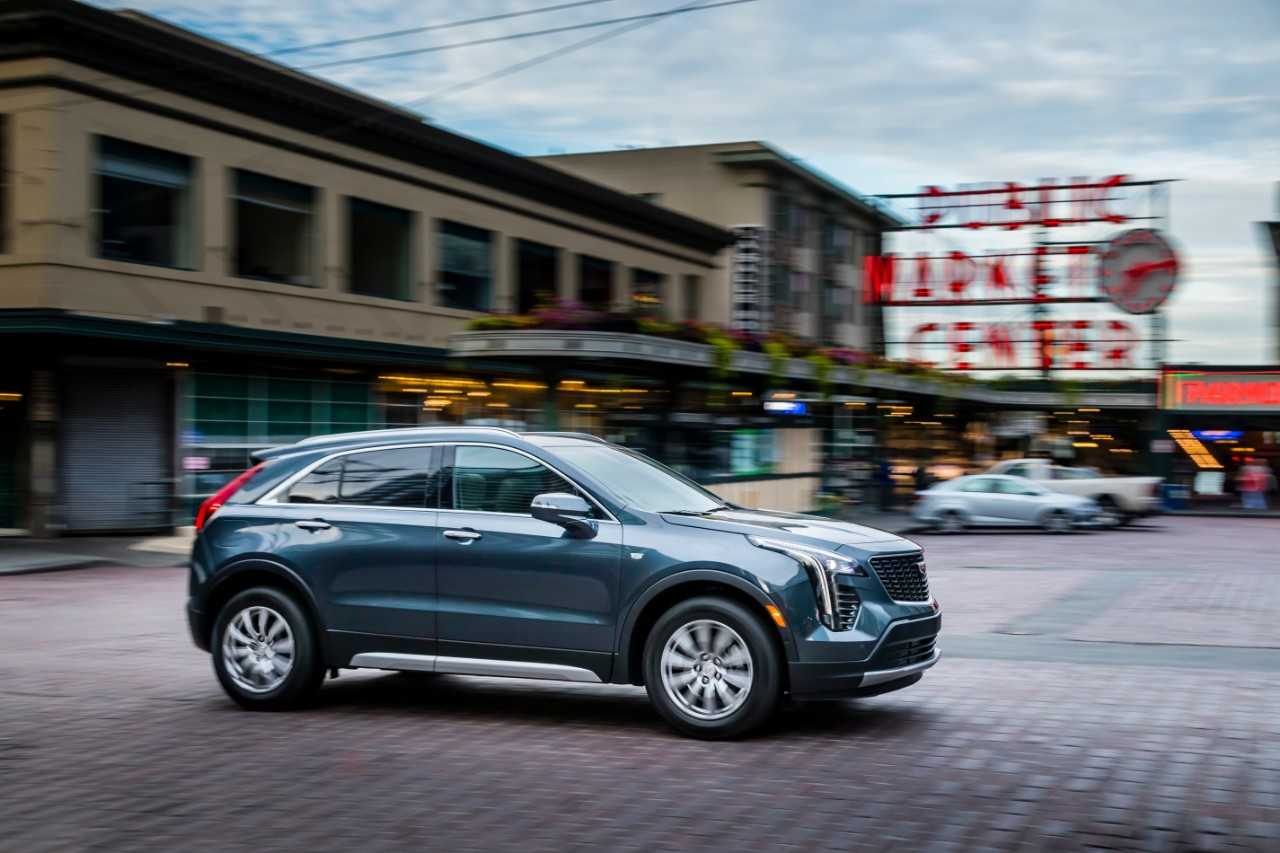

2023 Cadillac XT4 Information Displays
The information displays in the 2023 Cadillac XT4 are a cutting-edge mix of style and technology that changes the way you communicate with your car. These displays were made with great care and attention to detail, so the experience is engaging and easy to use. All of this is controlled by a big 10.2-inch touchscreen that is the heart of Cadillac’s User Experience (CUE) infotainment system. It makes navigation, entertainment, and connectivity features easy to reach. Along with this center piece is a fully digital instrument panel that lets you change the layout so that important driving information is right where you need it. The head-up display also shows important information on the window, so you can keep your eyes on the road and stay informed. The 2023 Cadillac XT4 claims to be both luxurious and technologically advanced to drive, with these cutting-edge displays close at hand. It will set a new standard for the modern SUV.
Information Displays
Driver Information Center (DIC)
The DIC is displayed in the instrument cluster. It shows the status of many vehicle systems.
- < or >: Press to move between the interactive display zones in the cluster. Press < to go back to the previous menu.
- ∧ or ∨: Use the thumbwheel to scroll to the previous or next selection.
 : Press the thumbwheel to open a menu or select a menu item. Press and hold to reset values on certain screens.
Info Page Options
The info displayed on the DIC can be turned on or off through the Options menu.
- Press > to scroll to the Options menu. Use the thumbwheel to scroll to Info Pages and press the thumbwheel to select.
- Scroll ∧ or ∨ move through the list of possible info displays.
- Press the thumbwheel while an item is highlighted to select or deselect that item.
The info pages can also be turned on or off through the DIC page Info Page Options.
DIC Information Displays
The following is the list of all possible DIC information displays. Some of the information displays may not be available for your particular vehicle.
While in the Info Page Options menu, the info pages can be restored to the default factory settings by pressing and holding  on the left steering wheel controls and the thumbwheel on the right steering wheel controls at the same time. For uplevel clusters, this will also reset the Display settings.
- Speed: Shows the vehicle speed in either kilometers per hour (km/h) or miles per hour (mph).
Trip 1 or Trip 2 and Average
- Fuel Economy: The Trip display shows the current distance traveled, in either kilometer (km) or miles (mi), since the trip odometer was last reset. The trip odometer can be reset by pressing and selecting yes or no while this display is active.
- Shows the approximate average liters per 100 kilometers (L/100 km), kilometers per liter (km/L), or miles per gallon (mpg). This number is calculated based on the number of L/100 km or km/L recorded since the last time this menu item was reset. This number reflects only the approximate average fuel economy that the vehicle has right now and will change as driving conditions change. The Average Fuel Economy can be reset by pressing and selecting yes or no while this display is active.
- Fuel Range: This shows the approximate distance the vehicle can be driven without refueling. LOW will be displayed when the vehicle is low on fuel. The fuel range estimate is based on an average of the vehicle’s fuel economy over recent driving history and the amount of fuel remaining in the fuel tank.
- Oil Life: Shows an estimate of the oil’s remaining useful life. If REMAINING OIL LIFE 99% is displayed, that means 99% of the current oil life remains. When the remaining oil life is low, the CHANGE ENGINE OIL SOON message will appear on the display. The oil should be changed as soon as possible. In addition to the engine oil life system monitoring the oil life, additional maintenance is recommended. The Oil Life display must be reset after each oil change. It will not reset itself. Do not reset the Oil Life display accidentally at any time other than when the oil has just been changed. It cannot be reset accurately until the next oil change. To reset, see Engine Oil Life System.
- Tire Pressure: Shows the approximate pressures of all four tires. Tire pressure is displayed in either kilopascal (kPa) or in pounds per square inch (psi). If the pressure is low, the value for that tire is shown in amber.
- Air Filter Life: This shows an estimate of the engine air filter’s remaining useful life and the state of the system. Engine Air Filter Life 95% means 95% of the current air filter life remains. Messages will be displayed based on the engine air filter life and the state of the system. When the REPLACE AT NEXT OIL CHANGE message displays, the engine air filter should be replaced at the time of the next oil change. When the REPLACE SOON message displays, the engine air filter should be replaced at the earliest convenience. The Air Filter Life display must be reset after the engine air filter replacement. To reset, see Engine Air Filter Life System.
- Fuel Economy: Displays average fuel economy, the best fuel economy over the selected distance, and a bar graph showing instantaneous fuel economy.
- Average Speed: Displays the average vehicle speed of the vehicle in kilometers per hour (km/h) or miles per hour (mph). This average is based on the various vehicle speeds recorded since the last reset. Reset the average speed by pressing the thumbwheel while this display is active to show a confirmation window to select yes or no.
- Timer: This display can be used as a timer. To start the timer, press the thumbwheel while this display is active. The display will show the amount of time that has passed since the timer was last reset. To stop the timer, press the thumbwheel briefly while this display is active and the timer is running. Press the thumbwheel while this display is active to reset the timer.
Follow Distance/Gap
- Setting: When Adaptive Cruise Control (ACC) is not engaged, the current follow time to the vehicle ahead is displayed as a time value on this page. When ACC has been engaged, the display switches to the gap setting page. This page shows the current gap setting along with the vehicle ahead telltale.
- Driver Assistance: If equipped, shows information for Lane Keep Assist (LKA) and Forward Collision Alert (FCA).
- Battery Voltage: Shows the current battery voltage.
- Coolant Temperature: Shows the engine coolant temperature in either degrees Celsius (°C) or degrees Fahrenheit (°F).
- Oil Temperature: Shows the engine oil temperature in either degrees Celsius (°C) or degrees Fahrenheit (°F).
- Engine Boost: Displays engine manifold pressure relative to ambient air pressure. It will display a boost in the pressure generated by the turbocharging system.
Transmission Fluid
- Temperature: Shows the temperature of the automatic transmission fluid in either degrees Celsius (°C) or degrees Fahrenheit (°F).
- Info Page Options: Scroll to choose which info pages appear on the DIC. Press the thumbwheel to select or deselect.
- Blank Page: Allows for no information to be displayed in the cluster info display areas.
Head-Up Display (HUD)
Warning: If the HUD image is too bright or too high in your field of view, it may take you more time to see things you need to see when it is dark outside. Be sure to keep the HUD image dim and placed low in your field of view.
If equipped with HUD, some information concerning the operation of the vehicle is projected onto the windshield. The image is projected through the HUD lens on top of the instrument panel. The information appears as an image focused out toward the front of the vehicle.
Caution: If you try to use the HUD image as a parking aid, you may misjudge the distance and damage your vehicle. Do not use the HUD image as a parking aid.
The HUD information can be displayed in various languages. The speedometer reading and other numerical values can be displayed in either English or metric units. The language selection is changed through the radio and the units of measurement are changed through the instrument cluster.
 The HUD may display some of the following vehicle information and vehicle messages or alerts:
- Speed
- Audio
- Phone
- Navigation
- Performance
- Driver Assistance Features
- Vehicle Messages
Some vehicle messages or alerts displayed in the HUD may be cleared by using the steering wheel controls. The HUD control is to the left of the steering wheel. To adjust the HUD image:
- Adjust the driver seat.
- Start the engine.
- Use the following settings to adjust the HUD.
 : Press or lift to center the HUD image. The HUD image can only be adjusted up and down, not side to side.
- INFO: Press to select the display view. Each press will change the display view.
- +
 : Lift and hold to brighten the display. Press and hold to dim the display. Continue to hold to turn the display off.
The HUD image will automatically dim and brighten to compensate for outside lighting. The HUD brightness control can also be adjusted as needed. The HUD image can temporarily light up depending on the angle and position of sunlight on the HUD display. This is normal. Polarized sunglasses could make the HUD image harder to see.
Head-Up Display (HUD) Rotation Option
This feature allows the angle of the HUD image to be adjusted. Press the thumbwheel while Adjust Rotation is highlighted to enter Adjust Mode. Scroll to adjust the angle of the HUD display. Press the thumbwheel to confirm and save the setting. This feature may only be available in P (Park).
HUD Views
There are four views in the HUD. Some vehicle information and vehicle messages or alerts may be displayed in any view.
- Speed View: This displays digital speed in English or metric units, speed limit, and indicators such as vehicle ahead, Lane Departure
Warning/Lane Keep Assist, Adaptive Cruise Control, and set speed. Some information only appears on vehicles that have these features, and when they are active. The speed limit sign can be disabled in the HUD settings under Options in the Cluster Menu.
- Audio/Phone View: This displays digital speed, indicators from the speed view along with audio/phone information. The current radio station, media type, and incoming calls will be displayed. All HUD views may briefly display audio information when the steering wheel controls are used to adjust the audio settings appearing in the instrument cluster. Incoming phone calls appearing in the instrument cluster may also be displayed in any HUD view.


- Navigation View: This displays digital speed, indicators from speed view along with Turn-by-Turn Navigation information in some vehicles. The compass heading is displayed when navigation routing is not active.
Navigation Turn-by-Turn Alerts shown in the instrument cluster may also be displayed in any HUD view.

- Performance View: This displays digital speed, indicators from speed view along with rpm reading, transmission positions, and gear shift indicator (if equipped).
FAQ’s
A: To access the information displays, navigate through the infotainment system using the touchscreen or physical controls.
A: Information displays can provide you with details about vehicle performance, navigation, media, and more.
A: You can usually customize the information displayed by selecting the settings or customization options within the infotainment system.
A: Many vehicles allow you to choose from various display layouts. Refer to your manual for specific instructions on how to change the layout.
A: Yes, you can typically switch between different displays using the touchscreen or steering wheel controls.
A: Look for display settings in the infotainment system to adjust brightness, contrast, and other visual parameters.
A: Some vehicles allow you to set up split-screen displays for viewing multiple types of information simultaneously.
A: Access the navigation system through the infotainment interface and follow on-screen instructions to enter a destination.
A: Many vehicles offer day and night display modes to optimize visibility and reduce glare.
A: Depending on the model, you can often access real-time vehicle information such as tire pressure, fuel economy, and more through the information displays.
A: Yes, you can usually connect your smartphone to access apps, navigation, and other features through the infotainment system.
A: You can typically switch between audio sources (e.g., FM radio, Bluetooth, USB) using the audio controls in the infotainment system.
A: Many vehicles offer voice recognition for hands-free control of the information displays. Check your manual for specific voice commands.
A: In case of display issues, you can often reset or clear the displays through the settings menu or by following instructions in the manual.
A: If you’re experiencing difficulties, refer to the owner’s manual or contact your local dealership for assistance or additional training on using the information displayed in your 2023 Cadillac XT4.