
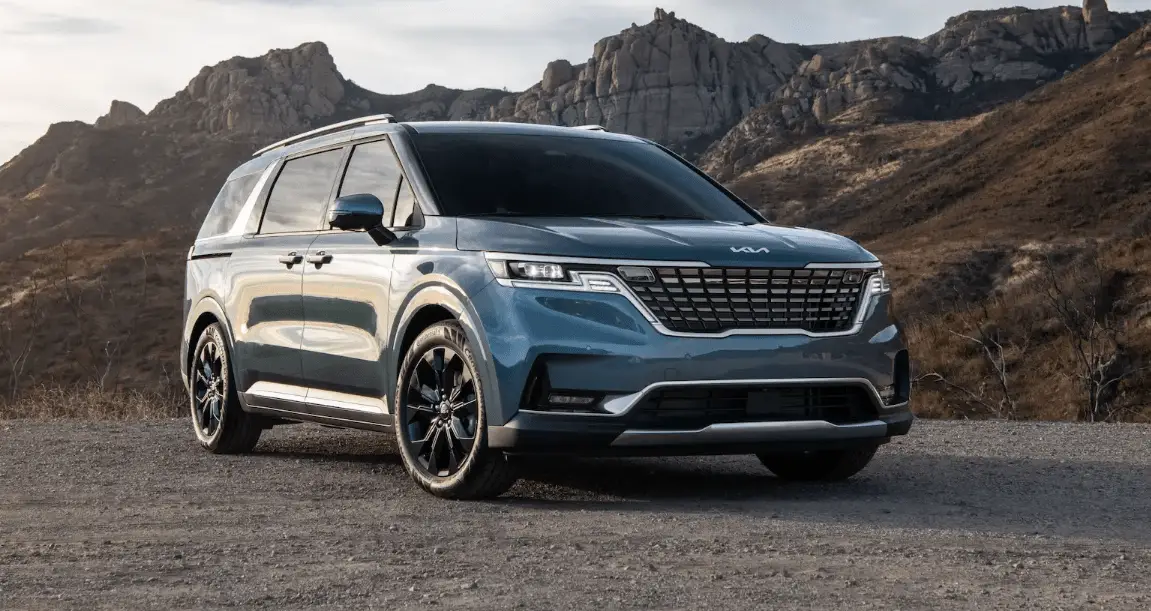

2024 Kia Carnival LCD Display User Manual
With the 2024 Kia Carnival’s cutting-edge LCD display interface, it’s no longer just a car; it’s a technology experience that changes the way cars are connected. This high-tech screen is built into Kia’s newest model and is the nerve centre of your driving experience. It combines entertainment, navigation, and car management functions into a single, easy-to-use interface. The Carnival’s LCD display gives drivers unmatched ease and control, turning boring commutes into exciting adventures with its large touchscreen, bright graphics, and responsive controls. This new interface makes sure that every moment behind the wheel is filled with unmatched comfort, ease, and connectivity, whether you’re driving through a busy city or going on a long road trip. It sets new standards for automotive excellence in the digital age.
2024 Kia Carnival Specs, Price, Features, Mileage and Review
LCD display
The LCD display modes can be changed with the control buttons.
LCD Display Control
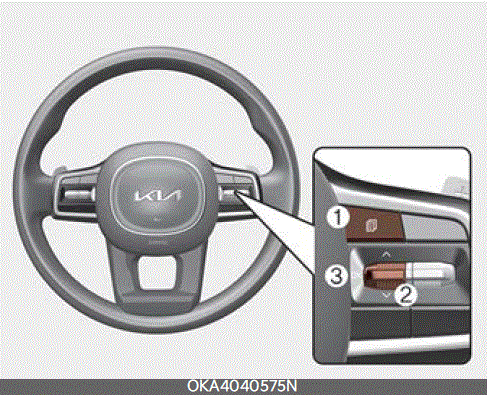
 : MODE button for changing modes
 : MOVE switch for changing items
- OK: SELECT/RESET button for setting or resetting the selected item
LCD display modes
The LCD display provides 5 modes. You can switch modes by pressing the Mode but-ton.
Mode |
|||||
 Driving Assist |

Trip Computer |

Turn By Turn (TBT)* |
 User Settings* |

Information/Master Warning |
|

Up/ Down |
Lane Keeping Assist Smart Cruise Control* Lane Following Assist Highway Driving Assist* |
Drive Info |
Route Guidance |
Driver Assistance |
TPMS |
| Driver Attention Warning | Since Refueling | Destination Info | Cluster | The Master Warning mode displays warn- ing messages related to the vehicle when one or more systems is not operating normally. | |
| Accumulated Info | Lights | ||||
| Digital Speedometer | Door | ||||
| Convenience | |||||
| Units | |||||
| Language | |||||
| Reset | |||||
The information provided may differ depending on which functions are applicable to your vehicle.
NOTICE
Keep the engine running when configuring the display settings to prevent the battery from discharging.
Trip computer mode
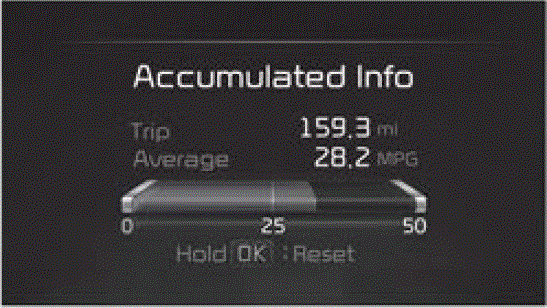
The trip computer mode displays information related to vehicle driving parameters including fuel economy, tripmeter information and vehicle speed.
For more details, refer to “Trip information (trip computer)”.
Turn By Turn (TBT) mode
This mode displays the state of the navigation.
Driving Assist mode

This mode displays the state of:
- Lane Safety
- Smart Cruise Control
- Driver Attention Warning
- Tire Pressure Monitoring System
This mode displays information related to tire pressure status.
Master warning mode

This warning light informs the driver the following situations.
- LED headlamp malfunction
- Lamp malfunction
- High Beam Assist malfunction
At this time, a Master Warning icon ( 
 ), on the LCD display. If the warning situation is solved, the master warning light will be turned off and the Master Warning icon will disappear.
User settings mode 
In this mode, you can change the set-tings of the instrument cluster, doors, lamps, etc.
- Driver Assistance
- Cluster
- Lights
- Door
- Convenience
- Units
- Language
- Reset
The information provided may differ depending on which functions are applicable to your vehicle.
INFORMATION
The infotainment system may change after software updates. For more information, refer to the user`s manual provided in the infotainment system and the quick reference guide.
Driver Assistance
|
Items |
Explanation |
| Driving Convenience | To adjust Highway Driving Assist.
* For more details, refer to “Highway Driving Assist (HDA) (if equipped)” . |
| Speed Limit | To adjust Speed Limit.
* For more details, refer to “Intelligent Speed Limit Assist (ISLA) (if equipped)” . |
| Warning Timing |
To select the Warning time. |
| Warning Volume |
To select the Warning volume. |
| Driver Attention Warning |
To select the function. * For more details, refer to “Driver Attention Warning (DAW)” . |
| Forward Safety | To adjust Forward Collision-Avoidance Assist.
To select the functions. |
| Lane Safety | To adjust Lane Keeping Assist.
|
| Blind-Spot Safety | To activate or deactivate Blind-Spot View Monitor.
To activate or deactivate Safe Exit Assist or Safe Exit Warning.
For more details, refer to “Safe Exit Assist (SEA) (if equipped)” .
For more details, refer to “Safe Exit Warning (SEW) (if equipped)” on page 6-49. To Activate or deactivate Blind-Spot Collision-Avoidance Assist.
For more details, refer to “Blind-Spot Collision-Avoidance Assist (BCA) . |
| Items | Explanation |
|
Parking Safety |
To Activate or deactivate Rear Cross-Traffic Collision-Avoidance Assist.
For more details, refer to “Reverse Parking Collision-Avoidance Assist (PCA) (if equipped)”. |
|
Items |
Explanation |
| Parking Safety |
To Activate or deactivate Rear Cross-Traffic Collision-Avoidance Assist.
For more details, refer to “Reverse Parking Collision-Avoidance Assist (PCA) (if equipped)” . |
The information provided may differ depending on which systems are applicable to your vehicle.
Cluster
|
Items |
Explanation |
| Wiper/Lights Dis- play | If this item is checked, the wiper/lights display will be activated. |
| Traffic Signs | If this item is checked, the traffic signs display will be activated. |
| Icy Road Warning | If this item is checked, the icy road warning will be activated. |
| Cluster Voice Guidance Volume | To adjust the cluster voice guidance volume.
|
| Welcome Sound | If this item is checked, the welcome sound function will be activated. |
| Wallpaper |
If this item is checked, the wallpaper will change accordingly. |
The information provided may differ depending on which systems are applicable to your vehicle.
Lights
|
Items |
Explanation |
| Illumination | To adjust the instrument cluster illumination.
|
| One Touch Turn Signal |
For more details, refer to “Lighting” . |
| Headlight Delay | If this item is checked, the head lamp delay function will be activated. |
| High Beam Assist | If this item is checked, High Beam Assist will be activated. |
The information provided may differ depending on which functions are applicable to your vehicle.
Door
|
Items |
Explanation |
| Automatically Lock |
If the setting is changed while the vehicle is in motion, the changed setting may not immediately operate. |
| Automatically Unlock |
|
| 2 Press Unlock | If this item is checked, the two press unlock will be activated. Press the door unlock button once to unlock the driver’s door, and press the button once more within 4 seconds to unlock the rest of the doors. |
| Horn Feedback | To activate or deactivate “Horn Feedback”. |
| Power Liftgate Opening Speed |
|
| Power Liftgate Opening Height |
|
| Liftgate Auto Close | To activate or deactivate Liftgate Auto Close. For more details, refer to “Liftgate Auto Close . |
| Smart Liftgate | To activate or deactivate the Smart Liftgate with Auto Open.
For more details, refer to “Smart Liftgate with Auto Open . |
| Smart Sliding Door | To activate or deactivate the Smart Sliding Door with Auto Open.
For more details, refer to “Smart Sliding Door with Auto Open . |
| Remote Power Doors & Liftgate | To adjust Remote Power Doors & Liftgate
For more details, refer to “Remote power doors and liftgate” . |
The information provided may differ depending on which systems are applicable to your vehicle.
Convenience
|
Items |
Explanation |
| Seat Easy Access |
To select the seat movement. |
| Rear Occupant Alert | If this item is checked, the Rear Occupant Alert (ROA) display will be activated. |
| Welcome Mirror/Light |
To select the welcome mirror/light function. |
| Wireless Charging System | If this item is checked, the wireless charging function will be activated. |
| Auto Rear Wiper (in R) | If this item is checked, the auto rear wiper will be activated. |
| Service Interval |
If this item is checked, the Service Interval function will be activated.
If the service interval menu is activated, you may adjust the time and distance.
To reset the service interval function. |
NOTICE
To use the service interval menu, consult an authorized Kia dealer.
The information provided may differ depending on which functions are applicable to your vehicle.
If the service interval is activated and the time and distance is adjusted, messages are displayed in the following situations each time the vehicle is turned on.
- Service in: Displayed to inform the driver the remaining mileage and days to service.
- Service required: Displayed when the mileage and days to service has been reached or passed.
If any of the following conditions occur, the mileage and number of days to service may be incorrect.
- The battery cable is disconnected.
- The battery is discharged.
Units
|
Items |
Explanation |
| Speedometer Unit |
To select the Speedometer unit. |
| Fuel Economy Unit |
To select the Fuel economy unit. For more details, refer to “Trip information (trip computer)” . |
| Temperature Unit |
To select the Temperature unit. |
| Tire Pressure Unit |
To select the Tire Pressure Unit |
The information provided may differ depending on which functions are applicable to your vehicle.
Language
|
Items |
Explanation |
| Language | To select language. |
Reset
|
Items |
Explanation |
| Reset | You can reset the menus in the User Settings mode. All menus in the User Settings mode are reset to factory settings, except language and service interval. |
LCD displays
LCD displays show the following information to drivers.
- Trip information
- LCD modes
- Warning messages
Trip information (trip computer)
The trip computer is a microcomputer controlled driver information system that displays information related to driving.
NOTICE
Some driving information stored in the trip computer resets if the battery is dis-connected.
Trip modes
Type A

Type B

Timer is displayed for Full LCD Cluster.
To change the trip mode, toggle the switch ( ) on the steering wheel.
Fuel economy
This information is always displayed at the bottom center of the Full LCD cluster.
Average Fuel Economy (1)

- The average fuel economy is calculated by the total driving distance and fuel consumption since the last aver-age fuel economy resets.
- Fuel economy range: 0 ~ 99.9 mpg or km/L, L/100 km
To make the average fuel economy be reset automatically whenever refueling, select the “Reset fuel economy” mode in User Setting menu of the LCD Windows (Refer to “User settings mode )” .
- Fuel economy range: 0 ~ 99.9 mpg or km/L, L/100 km
- At vehicle on The information will automatically reset when the driver’s door is opened after the ignition is turned off, or approximately 3 minutes have passed after the ignition is turned off.
- After refueling After refueling more than 1.6 gallons (6 liters) and driving over 1 mph (1 km/h), the vehicle will reset to default automatically.
NOTICE
The average fuel economy is not dis-played for more accurate calculation if the vehicle does not drive more than 10 seconds or 0.03 mi (50 m) since the ignition switch or ENGINE START/STOP button is turned to ON.
Instant Fuel Economy (2)
- This mode displays the instant fuel economy during the last few seconds when the vehicle speed is more than 6.2 mph (10 km/h).
- Fuel economy range: 0.0 ~ 30 km/L, L/100 km or 0.0 ~ 50.0 mpg
Accumulated driving information mode
This display shows the accumulated trip distance, the average fuel efficiency, and the instant fuel efficiency (or the total driving time).

- Accumulated information is calculated
after the vehicle has run for more than 0.19 miles (300 m). - If you press “OK” button for more than 1 second after the Cumulative Information is displayed, the information will be reset.
- If the engine is running, even when the vehicle is not in motion, the information will be accumulated.
Drive Info display
This display shows the trip distance, the average fuel efficiency, and the instant fuel efficiency (or the total driving time) once per one ignition cycle.

- Fuel efficiency is calculated after the vehicle has run for more than 0.19 miles (300 m).
- The information will automatically reset when the driver’s door is opened after the ignition is turned off, or approximately 3 minutes have passed after the ignition is turned off.
- If the engine is running, even when the vehicle is not in motion, the information will be accumulated.
NOTICE
The vehicle must be driven for a mini-mum of 0.19 miles (300 m) since the last ignition cycle before the average accumulated driving information is recalculated.
Information since refueling
This display shows the trip distance, the average fuel efficiency, and the instant fuel efficiency (or the total driving time) since refueling.

- Information since refueling is calculated after the vehicle has run for more than 0.19 miles (300 m).
- If you press “OK” button for more than 1 second after the information since refueling is displayed, the information will be reset.
- If the engine is running, even when the vehicle is not in motion, the information will be accumulated.
Digital speedometer
This digital speedometer display shows the speed of the vehicle.

Service mode
This mode reminds you of scheduled maintenance information.

Service Interval
It calculates and displays when you need a scheduled maintenance service (mileage or days).
If the remaining mileage or time reaches 900 miles (1,500 km) or 30 days, “Service interval” message is displayed for several seconds each time you set the ignition switch or ENGINE START/STOP Button to the ON position.
Service required
If you do not have your vehicle serviced according to the already inputted service interval, “Service required” message is displayed for several seconds each time you set the ignition switch or ENGINE START/STOP Button to the ON position.
To reset the service interval to the mile-age and days you inputted before:
- Press the OK button (Reset) for more than 1 second.
NOTICE
If any of the following conditions occurs, the mileage and days may be incorrect.
- The battery cable is disconnected.
- The battery is discharged.
Driving info display
At the end of each driving cycle, the Driving Info message is displayed.

This display shows the trip distance, the average fuel efficiency, and the instant fuel efficiency (or the total driving time).
This information is displayed for a few seconds when you turn off the vehicle, and then goes off automatically. The information is calculated for each time the vehicle is turned on.
NOTICE
- If sunroof open warning is displayed in the cluster, the Driving Information message may not be displayed.
LCD display messages
Door, hood, liftgate, sunroof open

- This warning is displayed indicating which door, the hood, the liftgate or the sunroof is open.
Low tire pressure warning display

This warning message is displayed if the tire pressure is low. The corresponding tire on the vehicle will be appeared.
Lights mode

This indicator displays which exterior light is selected using the lighting control.
You can activate or deactivate Wiper/Lights Display function from the User Settings mode in the cluster LCD display.
Wiper mode

This indicator displays which wiper speed is selected using the wiper control.
You can activate or deactivate Wiper/Lights Display function from the User Settings mode in the cluster LCD display.
Low washer fluid

This warning message is displayed if the washer fluid level in the reservoir is nearly empty.
Have the washer fluid reservoir refilled.
Icy road warning

This warning is to warn the driver the road may be icy.
When the following conditions occur, the warning light (including outside temperature gauge) blinks 5 times and then appears, and also warning chime sounds once.
- The temperature on the outside temperature gauge is below approximately 40 °F (4 °C).
NOTICE
If the icy road warning appears while driving, you should drive more attentively and safely refraining from over-speeding, rapid acceleration, sudden braking or sharp turning, etc.
Low engine oil
- This warning message appears when the engine oil level is insufficient.
- Refill the engine oil.
WARNING
- When the engine oil level warning light occurs, it is necessary to check whether maintenance schedule (Engine oil replacement) in owner’s manual has been followed before replenishing the oil, and if not followed, the engine oil must be replaced first
Engine oil change due soon. Reset oil life after oil change
- This warning message appears when the remaining engine oil life reaches 5% or below.
- Replace engine oil from an authorized Kia dealer. After that, select ‘Convenience → Oil Change Reminder’ from the User Settings menu on the cluster or ‘Vehicle → Cluster → Oil Change Reminder’ from Settings menu on the infotainment system screen to reset the remaining oil life.
Engine oil change due now. Reset oil life after oil change
- This warning message appears when the remaining engine oil life reaches 1% or below.
- Replace engine oil immediately from an authorized Kia dealer. After that, select ‘Convenience → Oil Change Reminder’ from the User Settings menu on the cluster or ‘Vehicle → Cluster → Oil Change Reminder’ from Settings menu on the infotainment system screen to reset the remaining oil life.
Engine Overheated
- This warning message appears when the engine coolant temperature is above 248 °F (120 °C). This mean that the engine is overheated and may be damaged.
Low key battery (for smart key system)
- This warning message appears if the battery of the smart key is discharged when the ENGINE START/STOP But-ton changes to the OFF position.
Press START button while turning wheel (for smart key system)
- This warning message appears if the steering wheel does not unlock normally when the ENGINE START/STOP Button is pressed
- It means that you should press the ENGINE START/STOP Button while turning the steering wheel right and left.
Steering wheel not locked (for smart key system)
- This warning message appears if the steering wheel does not lock when the ENGINE START/STOP Button changes to the OFF position.
Check the steering Wheel Lock System (for smart key system)
- This warning message appears if the steering wheel does not lock normally when the ENGINE START/STOP Button changes to the OFF position.
Key not in vehicle (for smart key system)
- This warning message appears if the smart key is not in the vehicle when you press the ENGINE START/STOP Button.
- It means that you should always have the smart key with you.
Key not detected (for smart key system)
- This warning message appears if the smart key is not detected when you press the ENGINE START/STOP Button.
Shift to P or N to start engine (for smart key system)
- This warning message appears if you try to start the engine with the gear not in the P (Park) or N (Neutral) position.
Press brake pedal to start engine (for smart key system)
- This warning message appears if the ENGINE START/STOP Button changes to the ACC position twice by pressing the button repeatedly without depressing the brake pedal.
- It means that you should depress the brake pedal to start the engine.
Battery discharging due to external electrical devices
The vehicle can detect self-discharge of the battery due to over-current that is generated by unauthorized electrical devices such as dashboard camera (dash cam) mounting during parking. If the warning continues even after external electrical devices are removed, have your vehicle inspected by an authorized Kia dealer.
Press START button again (for smart key system)
- This warning message appears if you can not operate the ENGINE START/STOP Button when there is a problem with the ENGINE START/STOP Button system.
- It means that you could start the
engine by pressing the ENGINE START/STOP button once more. - If the warning appears each time you press the ENGINE START/STOP But-ton, have the vehicle inspected by an authorized Kia dealer.
Press START button with key (for smart key system)
- This warning message appears if you press the ENGINE START/STOP But-ton while the warning message “Key not detected” is illuminating.
- At this time, the immobilizer indicator light blinks.
FAQs
The LCD screen in the 2024 Kia Carnival is a large 12.3 inches.
To change how bright the LCD screen is in your 2024 Kia Carnival, go to the settings menu and choose “display options.”
Yes, you can change the layout of the LCD screen in the 2024 Kia Carnival to meet your needs.
The LCD screen in the 2024 Kia Carnival can be used easily because it can be touched.
On your 2024 Kia Carnival’s LCD screen, you can get to the navigation system by choosing the navigation button from the main menu.
Yes, the 2024 Kia Carnival can link to your smartphone and let you mirror the screen of your device on the LCD screen.
Yes, the 2024 Kia Carnival’s LCD screen works with both Apple CarPlay and Android Auto, so you can easily connect your phone.
To change the sound options on your 2024 Kia Carnival’s LCD screen, go to the main menu and select “Sound Settings.”
No, the 2024 Kia Carnival doesn’t play videos on the LCD screen while the car is moving. This is done for safety reasons.
Yes, the 2024 Kia Carnival’s LCD screen can be controlled by voice so that different features can be used without using your hands.
In your 2024 Kia Carnival, you can change the language shown on the LCD screen by going to the settings menu and choosing the language choices.
Yes, you can change the 2024 Kia Carnival’s LCD screen shutdown settings to save power or make your experience more personal.
The 2024 Kia Carnival does have a night mode for the LCD screen that lowers glare and eye strain while driving at night.
Press and hold the power button on your 2024 Kia Carnival for a few seconds until the screen goes off. Then, let go of the button and turn the screen back on.
The 2024 Kia Carnival’s LCD display does have a screen just for showing diagnostics and performance data, which is useful information for the driver.
Useful Links
View Full PDF: 2024 Kia Carnival Owner’s Manual|Auto User Guide
2024 Kia Carnival Specs, Price, Features, Mileage and Review