

2023 Nissan Murano Displays Owner’s Manual
The 2023 Nissan Murano boasts cutting-edge displays that provide clear information and easy control, such as an 8-inch touchscreen infotainment system, a 7-inch driver display, and optional 12.3-inch digital gauges.
2023 Nissan Murano Specs, Price, Features, Mileage (Brochure)
NISSAN VEHICLE INFORMATION DISPLAY GUIDE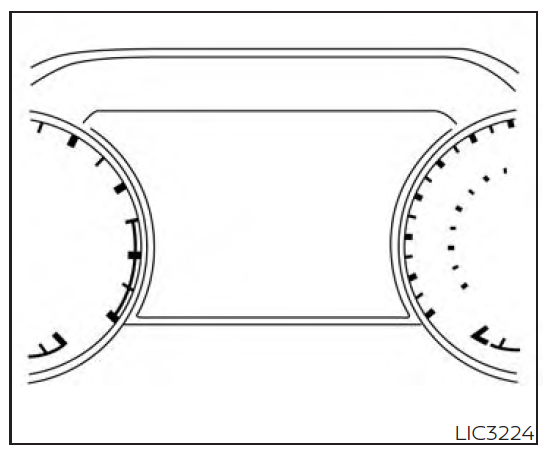
The vehicle information display is located to the left of the speedometer. It displays such items as:
- Home
- Audio information
- Navigation information (if so equipped)
- Drive computer information
- Fuel economy information
- Driving aids information (if so equipped)
- Speed Limit Sign (if so equipped)
- Tire pressure information
- Indicators and warnings
- Vehicle and meter display settings
- Cruise control status
- Odometer/twin trip odometer
- Gear position information (P, R, N, D)
- Distance To Empty and fuel indicator
- Time
- Outside Air Temperature
The display will be interrupted when a phone call is received. Phone calls can be answered or rejected through the steering wheel controls.
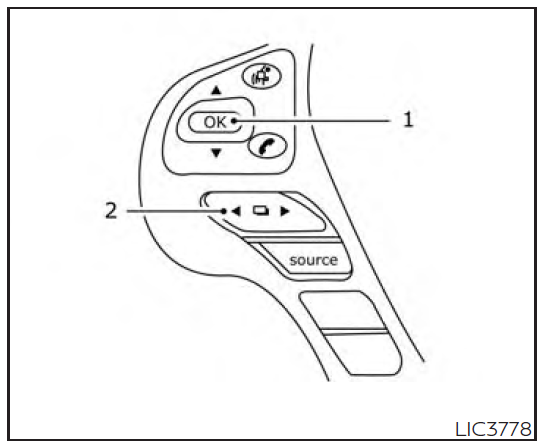
The vehicle information display can be changed using the OK and
buttons located on the steering wheel.
- OK — change or select an item in the vehicle information display.
— scroll up or down the vehicle in-formation menu items. If the vehicle in-formation display is not showing a menu with the buttons, pressing the will change to the previous/next audio preset. - — go back or forward through the vehicle information menu items or to change from one display screen to the next (i.e. trip, TPMS, fuel economy).
The OK and buttons also control audio and control panel functions in some conditions. Most screens and menus offer instruction prompts of the steering switch buttons to indicate how to control the vehicle information display. An orange cursor is shown to indicate where you are in the available menu items. A scroll bar with up and down arrows will appear if there is more than one page of menu items. For additional information, refer to the separate NissanConnect® Owner’s Manual.
STARTUP DISPLAY
When the vehicle in placed in the ON or ACC position the screens that display in the ve-hicle information display include:
- Home
- Audio
- Navigation (if so equipped)
- Drive computer
- Fuel economy
- Driving aids (if so equipped)
- Speed Limit Sign (if so equipped)
- Tire pressure information
- Warning review
- Settings
The warnings review title screen will show how many active warnings exist, or “No items to review” in the event that no warn-ings are active. For additional information on warnings and indicators, see “Vehicle information display warnings and indica-tors”.
To control what items display in the vehicle information display, see “Customize Dis-play”.
SETTINGS
The setting mode allows you to change the information displayed in the vehicle infor-mation display:
- Driver Assistance
- Customize Display
- Vehicle Settings
- Maintenance
- Clock
- TPMS Settings
- Unit / Language
- Key-Linked Settings
- Factory Reset
Driver Assistance
The driver assistance menu allows the user to change the various driving aids. Some menu items shown below may not be equipped on your vehicle.
| Menu item | Explanation | ||
| Lane | Displays available lane options. | ||
| Lane Departure Warning | Allows user to turn the Lane Departure Warning (LDW) system on or off. For additional information, see “Lane De- parture Warning (LDW)” | ||
| Lane Departure Prevention | Allows user to turn the Intelligent Lane Intervention (I-LI) on or off when the engine is running The system will re- set to off after every ignition cycle. For additional information, see “Intelligent Lane Intervention (I-LI)” | ||
| Blind Spot | Allows user to turn the Blind Spot Warning (BSW) and Rear Cross Traffic Alert (RCTA) systems on or off. For addi- tional information, see “Blind Spot Warning (BSW)” and “Rear Cross Traffic Alert (RCTA) | ||
| Speed Limit Sign | Allows user to turn the Speed Limit Sign recognition on or off. For additional information, see “Traffic Sign Recogni- tion” | ||
| Parking Aids | Displays available parking aids. | ||
| Sensor | Displays available sensor options. | ||
| ON | Front and rear sonar is on. | ||
| OFF | Front and rear sonar is off. | ||
| Front Only | Only front sonar is on. | ||
| Display | Allows user to turn the parking aids display on or off. | ||
| Volume | Allows the user to set the parking sensor volume to High/Med./Low | ||
| Range | Allows user to set the parking sensor range to Near/Mid/Far. | ||
| Emergency Brake | Displays available emergency brake options. | ||
| Front | Allows user to turn the front emergency braking system on or off. For additional information, see “Automatic Emergency Braking (AEB) with Pedestrian Detection” and “Intelligent Forward Collision Warning (I-FCW)”. | ||
| Rear | Allows user to turn the rear emergency braking system on or off. For additional information, see “Rear Automatic Braking (RAB)”. | ||
| Driver Attention Alert | Allows user to turn the Intelligent Driver Alertness (I-DA) on or off. For additional information, see “Intelligent Driver Alertness (I-DA)”. |
| Timer Alert | Allows user to set or reset the timer alert. The timer alert is based on when the ignition is placed in the ON posi- tion. |
| Low Temperature Alert | Allows user to turn the low temperature alert on or off. |
| Cruise Control Alerts | Allows user to turn the cruise control alerts on or off. |
Customize Display
The customize display menu allows the user to customize the information that appears in the vehicle information display. Some menu items shown below may not be equipped on your vehicle.
| Menu item | Explanation | |
| Main Menu Selection | Displays available main menu items to display in the vehicle information display. | |
| Home | Allows user to turn the home screen on or off. | |
| Audio | Allows user to turn the audio screen on or off. | |
| Navigation | Allows user to turn the navigation screen on or off. | |
| Drive Computer | Allows user to turn the drive computer screen on or off. | |
| Fuel Economy | Allows user to turn the fuel economy screen on or off. | |
| Driving Aids | Allows user to turn the driving aids screen on or off. | |
| Speed Limit Sign | Allows user to turn the speed limit sign screen on or off. | |
| Tire Pressures | Allows user to turn the tire pressures screen on or off. | |
| Car Icon Color | Allows user to select the color of the vehicle shown in the vehicle information display. | |
| ECO Info Settings | Displays the various ECO info settings. | |
| ECO Drive Report | Select to display this report for a period of time when the ignition is turned off. | |
| View History | Select to view the vehicle’s fuel consumption history. | |
| Navigation Settings | Displays the various navigation settings. | |
| Alerts | Allows user to disable the interrupt alerts for upcoming turns. | |
| View Mode | Allows user to select the “Arrow” mode for displaying the upcoming turn or “City” mode for displaying the intersec- tion on a map when available. | |
| Welcome Effect | Displays the various welcome effect settings. | |
| Gauges | Allows the user to disable the gauge pointer sweep during vehicle startup. | |
| Animation | Allows the user to disable the welcome animation during vehicle startup. | |
Vehicle Settings
The vehicle settings allow the user to change the settings for lights, wipers, locking, keys, and other vehicle settings. Some menu items shown below may not equipped on your vehicle.
| Menu item | Explanation | |
| Rear Door Alert | Displays the available Rear Door Alert options. For additional information, see “Rear Door Alert”. | |
| OFF | When selected, no alert or horn will be active. | |
| Horn & Alert | When selected, the alert is displayed and horn sounds. | |
| Alert Only | When selected, only the alert is displayed. | |
| Lighting | Displays the various lighting settings. | |
| Accent Lighting | Allows the user to adjust the brightness of the accent lights. | |
| Light Sensitivity | Allows the user to change when the lights illuminate based on the brightness outside the vehicle. | |
| Light Off Delay | Allows the user to change the duration of time, from 0 to 180 seconds, that the automatic headlights stay on after the vehicle is shut off. | |
| Turn Indicator | Displays available turn indicator settings. | |
| 3 Flash Pass | Allows the user to turn the 3 flash pass on or off. | |
| Locking | Displays the various locking settings. | ||
| Ext. Door Switch | Allows user to turn the exterior door switch on or off. When turned on, the request switch on the door is acti- vated. | ||
| Selective Unlock | Allows user to turn selective unlock on and off. When turned on, the driver’s door is unlocked and the door handle request switch on the driver’s or front passenger’s door is pushed to be unlocked, only the corre- sponding door is unlocked first. All the doors can be unlocked if the door unlock operation is performed again within 1 minute. When this item is turned to OFF, all the doors will be unlocked after the door unlock operation is performed once. | ||
| Answer Back Horn | Allows user to turn answer back horn on or off. When turned on, the horn will chirp and the hazard indicators will flash once when locking the vehicle with the Intelligent Key. | ||
| Auto Door Unlock | Displays the options for the auto door unlock. | ||
| OFF | Doors will have to be manually unlocked. | ||
| Ignition OFF | Doors will unlock when the ignition is turned off. | ||
| Shift into Park | Doors will unlock when the vehicle is shifted into P (Park). | ||
| Wipers | Displays the various wipers settings. | ||
| Speed Dependent | Allows the user to turn the speed dependent feature on or off. | ||
| Driving Position | Displays the various driving position settings. | ||
| Exit Seat Slide | Allows the user to turn the exit seat slide on or off. When turned on, the driver seat will slide back after ignition is turned off for easy exit of the vehicle. For additional information, see “Memory seat”. | ||
| Exit Steering Up | Allows the user to turn the exit steering up on or off. When turned on, the steering wheel will rise after ignition is turned off for easy exit of the vehicle. For additional information, see “Memory seat”. | ||
| Remote Engine Start | Allows user to turn the Remote Engine Start on or off. When turned on, the engine can be restarted remotely. For additional information, see “Remote Engine Start”. | ||
Maintenance
The maintenance menu allows the user to set reminders for various vehicle maintenance items.
2023 Nissan Murano Specs, Price, Features, Mileage (Brochure)
WARNING
The tire replacement indicator is not a substitute for regular tire checks, including tire pressure checks. For additional informa-tion, see “Changing wheels and tires”. Many factors including tire inflation, alignment, driving habits and road conditions affect tire wear and when tires should be replaced. Setting the tire replacement indicator for a certain driving distance does not mean your tires will last that long. Use the tire replacement indicator as a guide only and always perform regular tire checks. Failure to perform regular tire checks, including tire pressure checks could result in tire failure. Serious vehicle damage could occur and may lead to a collision, which could result in serious personal injury or death.
| Menu item | Explanation | |
| Maintenance | Displays various maintenance reminder options. | |
| – | Oil and Filter | Allows user to set a reminder at a specific interval or reset the current one. |
| Tire | Allows user to set a reminder at a specific interval or reset the current one. | |
| Other | Allows user to set a reminder at a specific interval or reset the current one. | |
Clock
| Menu item | Explanation |
| Clock | The vehicle clock can only be adjusted from the audio center display. When selected, the user will be in- structed to go to the settings menu in the audio center display. For additional information, refer to the sepa- rate NissanConnect® Owner’s Manual. |
TPMS Settings
The TPMS settings menu allows the user to change the tire pressure units displayed in the vehicle information display.
| Menu item | Explanation |
| Tire Pressure Unit | Allows the user to select the tire pressure units that will display in the vehicle information display. |
Unit/Language
The Unit/Language menu allows the user to change the units and language shown in the vehicle information display.
| Menu item | Explanation |
| Mileage/Fuel | Allows user to select different mileage display units. |
| Tire Pressure Unit | Allows user to select different pressure display units. |
| Temperature | Allows user to select different temperature display units. |
| Language | Allows user to select different languages. |
Key-Linked Settings
| Menu item | Explanation |
| System | Allows user to turn the Key-Linked Settings on or off. For additional information, see “Memory seat” |
Factory Reset
The factory reset menu allows the user to restore the vehicle information display settings to factory status.
| Menu item | Explanation |
| Factory Reset | Allows user to reset the vehicle information display settings to the original factory settings. Once selected, the user can confirm or cancel the reset. |
FAQs
The 2023 Nissan Murano comes with an 8-inch color touchscreen display.
The 2023 Nissan Murano supports both Apple CarPlay and Android Auto on its display screen.
The Advanced Drive-Assist Display in the 2023 Nissan Murano shows key driving information like navigation, safety alerts, and fuel economy.
The 2023 Nissan Murano offers a split-screen display to show navigation and audio information simultaneously.
The 2023 Nissan Murano’s touchscreen supports multi-touch gestures like pinch-to-zoom for ease of use.
Useful Links
View Full PDF: Nissan MURANO 2023 User Guide | Auto User Guide
2023 Nissan Murano Specs, Price, Features, Mileage (Brochure)