

 2023 Tesla Model X LCD Display User Guide
This Guide covers the 2023 Tesla Model X LCD Display’s superior touchscreen interface, major features, and customization choices. Understand how to use Tesla’s advanced technology to reach key controls, optimize display settings, and improve driving.
2023 Tesla Model X Specs, Price, Features, Mileage and Review
Video: 2023 Tesla Model X Dashboard Warning Indicators
Touchscreen Overview
WARNING: Always pay attention to road and traffic conditions when driving. To minimize driver distraction and ensure the safety of vehicle occupants as well as other road users, avoid using the touchscreen to adjust settings while the vehicle is in motion. Use the touchscreen to control many features that, in traditional cars, are controlled using physical buttons (for example, adjusting the cabin heating and air conditioning, headlights, etc.). You also use the touchscreen to control media, navigate, use entertainment features, and customize Model X to suit your preferences. For hands-free access to common touchscreen controls, use voice commands If the touchscreen is unresponsive or demonstrates unusual behavior, you can restart it
NOTE: Illustrations are provided to improve conceptual understanding only. Depending on vehicle options, software version, market region, and regional and language settings, the details displayed on the screen will differ.
- Navigation: Change the orientation of the map, find or navigate to a destination, and change navigation settings
- Status bar: This area on the top of the touchscreen displays the time of day, the outside temperature, and the following icons:
 Touch to lock/unlock all doors and trunks. Your vehicle automatically updates the time. If the time is incorrect, confirm your vehicle has internet and GPS connectivity with the latest software.
 Displays on the touchscreen status bar only when Model X detects a programmed HomeLink within range, and the touchscreen is not already displaying the HomeLink screen or popup.
 Displays on the touchscreen status bar only when Model X is parked. Add, configure (including Valet Mode and Use Easy Entry), or quickly switch driver profiles. Driver profiles can also be accessed from the top of any Controls screen.
 Available when Model X is parked, touch to manually enable or disable Sentry Mode for the current drive cycle. To automatically turn Sentry Mode on (or off) every time you leave your vehicle, enable the setting from Controls > Safety > Sentry Mode. For more information.
 Displays when Model X is connected to a Wi-Fi network.
 Displays when Model X cellular connectivity is very low or unavailable. Touch this icon for quick access to Wi-Fi settings.
- Drive mode strip: Use to shift into Park, Reverse, Neutral, or Drive. The drive mode strip always displays on the touchscreen when you touch the Controls
- Controls: Control various features and customize Model X to suit your preferences. The Controls screen appears over the map. Touch an option on the Controls screen to display the various settings and options associated with the chosen option. Swipe to close. When an information icon displays beside a specific setting, touch it to display a popup that provides helpful details about the associated setting.
- NOTE: You can also access Controls by touching anywhere on the side of the touchscreen closest to the driver and swiping open.
- NOTE: Many vehicle controls, settings, and preferences (such as climate, media, and navigation) can be adjusted hands-free using voice commands
- Climate controls (driver): Use the left and right arrows to decrease/increase cabin temperature. Touch Split on the popup to display separate controls for the driver and passenger. Touch the temperature icon to customize climate control settings The passenger climate controls display when temperature controls have been Split to provide separate controls for the driver and passenger.
- My Apps: For one-touch access to frequently used apps and controls, you can choose what displays here.
- App Launcher: Touch the app launcher to open the app tray. Then touch any app to open it. The app you choose displays on top of the map. To close an app, drag it downward.
- NOTE: You cannot completely close Media Player. When you drag Media Player down, it displays Mini-Player which allows you to see what’s playing, pause/play, and skip reverse/forward.
- Recent App(s): Displays the most recently used app(s). The number of recent apps displayed here depends on how many apps have been added to My Apps. If you add the maximum number of apps to My Apps, only the most recent app displays.
- climate controls (passenger): Displays when temperature controls have been Split to provide separate controls for the driver and passenger.
- Volume Control: Controls the volume of the media player and phone calls The volume of navigation instructions is controlled separately
- Media Player: The bottom of the touchscreen may also display the following:
 Displays the status of the front passenger airbag
Popup Messages and Vehicle Alerts
Popup messages appear at the bottom of the touchscreen. For example, a seat belt reminder appears if a seat belt is unfastened in an occupied seat, an alert appears to notify you of an incoming phone call, a text message appears (when applicable), and voice commands appear when in use. If applicable, touch options from these popup messages (for example, accept/decline a phone call, choose an option from the headlight menu, etc.). To dismiss a popup message, swipe it downward.
If an alert appears on your vehicle’s touchscreen, touch Learn More for more details regarding the alert and how it can be resolved. You can view a list of vehicle alerts and notifications by touching the bell icon at the top of Controls.
NOTE: Not all alerts provide additional information at this time.
Tilt the Touchscreen (if equipped)
To tilt the touchscreen, navigate to Controls, then touch the display icon to choose the desired position.
WARNING: When the center display is tilting, ensure that there are no objects (such as your fingers or jewelry) between the screen and instrument panel to reduce the risk of injury or damage.
Restarting the Touchscreen
You can restart your touchscreen if it is unresponsive or demonstrates unusual behavior.
NOTE: To ensure the safety of occupants as well as other road users, restart the touchscreen only when the vehicle is in Park.
- Shift into Park.
- Hold down both scroll buttons on the steering yoke (or steering wheel) until the touchscreen turns black. Pressing the brake pedal while holding down the scroll buttons does not have any impact and is not required.
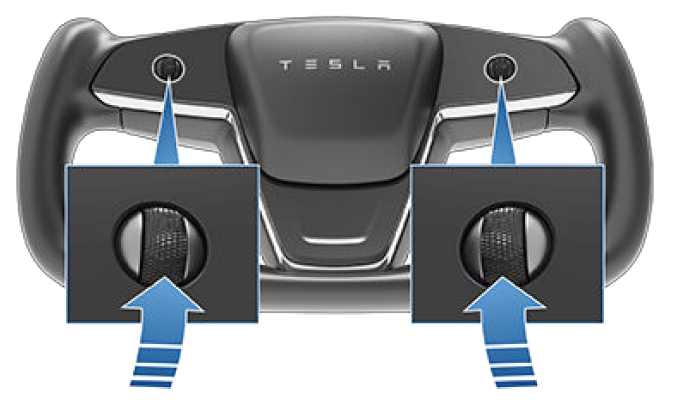
- After a few seconds, the Tesla logo appears. Wait approximately 30 seconds for the touchscreen to restart. If the touchscreen is still unresponsive or demonstrating unusual behavior after a few minutes, try power cycling the vehicle (if possible).
- NOTE: Restarting the touchscreen also activates the drive mode selector on the center console.
- NOTE: Pressing the scroll buttons only restarts the touchscreen. It does not restart any other vehicle component and does not power Model X off and on.
Rear Touchscreen
The rear touchscreen provides rear passengers with access to:
- Temperature: Touch the arrows to decrease/increase cabin temperature.
- NOTE: You can also use the front touchscreen to adjust climate settings in the rear cabin
- Power: Touch to turn the rear climate control system on or off.
- Rear fan: Touch to turn the rear fan on or off, to adjust fan speed and control the direction of airflow from the rear vents
- Seat heaters: Control rear seat heaters.
- Media: Play, pause, skip or rewind through the currently playing song (see Media on page 170).
- Video: Access video streaming services.
- Auto: If Auto is enabled and a passenger is detected, the set temperature is maintained for the rear cabin.
- NOTE: Enable Sync on the rear tab of the front touchscreen’s climate controls to set both the front and back cabin temperatures.
- Volume: Touch to adjust the volume.
- NOTE: Adjusting the media and volume controls also adjusts the front cabin settings.
Rear Screen Remote Control
 To control the rear screen from the front display, open the rear screen remote control app in the bottom bar. Besides audio, video, and climate controls, you can lock the rear display in the app or by touching Controls > Display > Lock Rear Display.
Customizing My Apps
For one-touch access to commonly used apps and controls, you can customize what displays in the My Apps area on the touchscreen’s bottom bar:
- Enter customization mode by touching and holding any app or control in the My Apps area. If this area is empty, touch the App Launcher.
- Simply drag any app or control from the app tray onto the My Apps area in the bottom bar.
- NOTE: Seat heaters selected from the app tray appear next to the temperature, instead of in the My Apps area.
- NOTE: Controls (for example, defrosters and seat heaters) appear in the app tray only when you enter customization mode by touching and holding an app.
- NOTE: When you’ve added the maximum number of apps or controls to My Apps, adding an additional app removes the rightmost app.
- NOTE: Remove an app or control from the My Apps area by touching and holding, then touching its associated “X”.
Customizing Display and Sound Settings
Touch Controls > Display to adjust display settings to suit your preferences:
- Appearance: Customize the display to be Dark or Light. When set to Auto, the brightness changes automatically based on ambient lighting conditions.
- Brightness: Drag the slider to manually control the brightness level. If Display Mode is set to Auto, the touchscreen further adjusts based on both the ambient lighting conditions and your brightness preference. Model X remembers your chosen brightness preference and adjusts the touchscreen accordingly.
- Screen Clean Mode: When enabled, your touchscreen darkens and temporarily disables to facilitate cleaning. Follow the onscreen instructions to exit Screen Clean Mode.
- Touchscreen Language: Select the language that the touchscreen displays.
- NOTE: Model X must be in Park to change the language. When you change the language, you experience a brief delay as Model X shuts down and restarts the touchscreen.
- Voice Recognition Language: Choose the language to be used for voice commands.
- Voice Navigation Language: Choose the language that the navigation system uses for spoken instructions.
NOTE: For languages that require a download, select the language in the dropdown list to initiate the download (Wi-Fi connection required).
- Voice Navigation Language: Choose the language that the navigation system uses for spoken instructions.
- Lock Rear Display: Lock access to the rear touchscreen.
- Time: Choose to display time in either a 12 or 24-hour format.
- Energy Display: Choose to display the remaining energy and charging units as either a percentage of battery energy remaining or as an estimate of the distance you can drive.
- NOTE: When anticipating when you need to charge, use energy estimate as a general guideline only. Many factors have an impact on energy consumption.
- Distance: Choose to display range using miles or kilometers.
- Temperature: Choose to display temperature using Fahrenheit or Celsius.
- Tire Pressure: Choose to display tire pressures using BAR or PSI.
In addition to customizing the display, you can enable Joe Mode to reduce the volume of all chimes that are not related to critical safety issues. Touch Controls > Safety > Joe Mode to enable.
Naming your Vehicle
To further personalize your vehicle, you can name it. Touch Controls > Software > Name Your Vehicle located on the right side of the touchscreen below the image of your Model X. If your vehicle already has a name, simply touch the existing name to change it. Enter the new name in the popup and touch Save. The name of your Model X also appears in the Tesla mobile app.
Erasing Personal Data
You can erase all personal data (saved addresses, music favorites, HomeLink programming, etc.) and restore all customized settings to their factory defaults. This is useful when transferring ownership of Model X. Touch Controls > Service > Factory Reset. Before erasing, Model X verifies your credentials by prompting you to enter the username and password associated with your Tesla account.
Useful Link
View Full PDF: 2023 Tesla Model X User Manual|Auto User Guide
2023 Tesla Model X Specs, Price, Features, Mileage and Review
2023 Tesla Model X Seats and Seat Belt User Guide