


2026 Audi Q3 LCD Display User Guide
This blog delves into the 2026 Audi Q3 LCD Display, providing insights into its superior digital interface and revolutionary features. Understand how the high-resolution screen improves the driving experience, navigation, and connectivity.
Video: Audi Q3 Warning Lights and Indicator
Touch display
General instructions for using the touch display
General information
Applies to: touch display
The center display is a touchscreen. Operation is very similar to operating a smartphone.
Note
Certain gestures are not available in every menu.
Pressing
Applies to: touch display
Selecting a function or button
- Press the desired function or button.
Pressing and holding
Applies to: touch display
Accessing options
For some items, you can access additional options that are not directly visible.
- Press and hold an item until the associated options are displayed.
Pressing and pulling
Applies to: touch display
Moving an item
You can position some items at any location on the screen.
- Press and hold an item, and then use your finger to pull it to the desired location.
Pinching fingers together and pulling apart
Applies to: touch display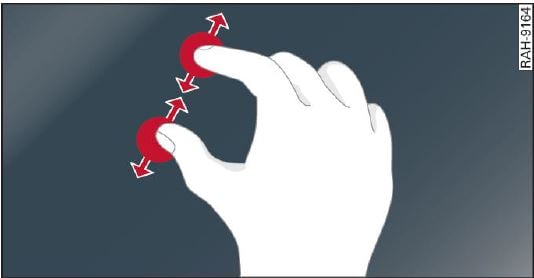
Zooming in and out on an Item
- To increase the size of an item, touch it with two fingers and pull your fingers apart.
- To decrease the size of an item, touch it with two fingers and pull your fingers together.
Rotating
Applies to: touch display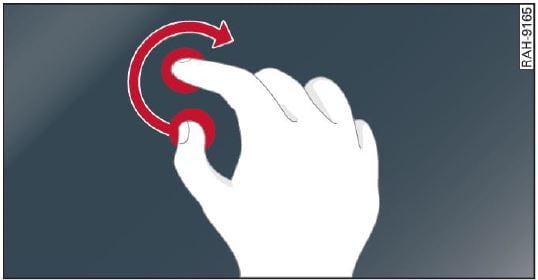
Rotating the view or perspective
- Rotate the item using two fingers.
Dragging
Applies to: touch display
Scrolling or browsing through menus/lists
- To scroll through menus and lists, swipe upward or downward with one finger.
- To browse through menus and lists, swipe to the right or left with one finger.
Tilting 3D displays
- Drag upward or downward with two fingers.
Dragging away from/toward the edge of the screen
Applies to: touch display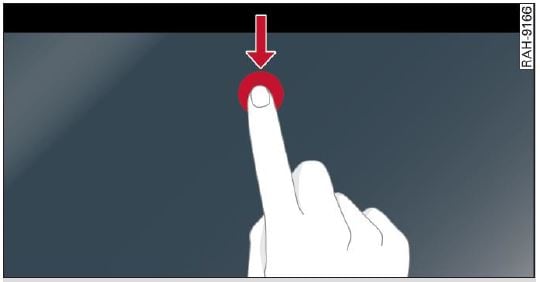
Opening hidden menus
The symbol indicates that there is a hidden menu.
- Use your finger to drag inward from the upper or lower edge of the screen, or
Press the button.
Closing hidden menus
- Press within the menu and drag it toward the upper or lower edge of the screen.
Information about menu paths
This guide shows you at a glance the paths for opening a desired menu and its settings and functions.
Example of a path
- Applies to: MMI: Select on the home screen: SETTINGS > General > Date & time.
Following the path
- First, determine in which display the path should be entered. In this example, it is the MMI display.
- To open the home screen, press.
- If the SETTINGS button is not displayed, use your finger to swipe to the left or right until it appears.
- Press the SETTINGS button.
If the General button is not displayed, swipe toward the left or right with one finger until it appears. - Press the General button.
- If the Date & time button is not displayed, swipe upward or downward with one finger until it appears.
- Press the Date & time button.
TIPS
If a menu or symbol is in parentheses in the path, for example, (General) or (0), then it is an optional menu item that does not need to be used in every system.
Settings
- Applies to MMI: Select on the home screen: SETTINGS > Display & brightness> MMI.
Possible settings:
- Brightness
- Touchscreen feedback
Multi Media Interface
Traffic safety information
Audi recommends only using certain Infotainment system functions, such as entering a destination or pairing a mobile device, while the vehicle is stationary. Always be prepared to stop operating the Infotainment system in the interest of your safety and the safety of other road users.
WARNING
- Only use the Infotainment system when road, traffic, weather, and visibility conditions permit and always in a way that allows you to maintain complete control over your vehicle.
- This also applies to operating your mobile devite via the MMI. Do not allow the visual or audio signals from a mobile device to distract you from traffic, because this increases the risk of an accident.
TIPS
Certain functions are not available while driving.
Switching on or off
Switching the MMI on or off
- To switch the MMI off, press and hold the On/Off knob until all Infotainment functions are switched off.
- To switch the MMI on, press the On/Off knob.
Restarting the MMI
- Press and hold the On/Off knob for at least 10 seconds.
Switching the center display on or off
- To switch the center display on or off, press the button in the center console above the selector lever,
- To switch the center display off, press in the notification center.
- To switch the center display on, touch the display or press again.
Introduction
You can display and operate Infotainment system and vehicle functions using the touch display in the Multi Media Interface, abbreviated MMI.
Configuration wizard
After starting for the first time, the configuration wizard helps you to set up the vehicle, for example to set the desired system language and connect a telephone.
- Follow the instructions in the center display.
- Applies to: MMI: To access the configuration wizard at a later time, select on the home screen: HELP > Configuration wizard.
Tool tips
- You can have tool tips displayed if necessary. They introduce various MMI functions to you.
- Applies to: MMI: To open the tool tips, select on the home screen: HELP > Tool tips> Basic information or Expert information.
- Follow the instructions in the display.
Menus and symbols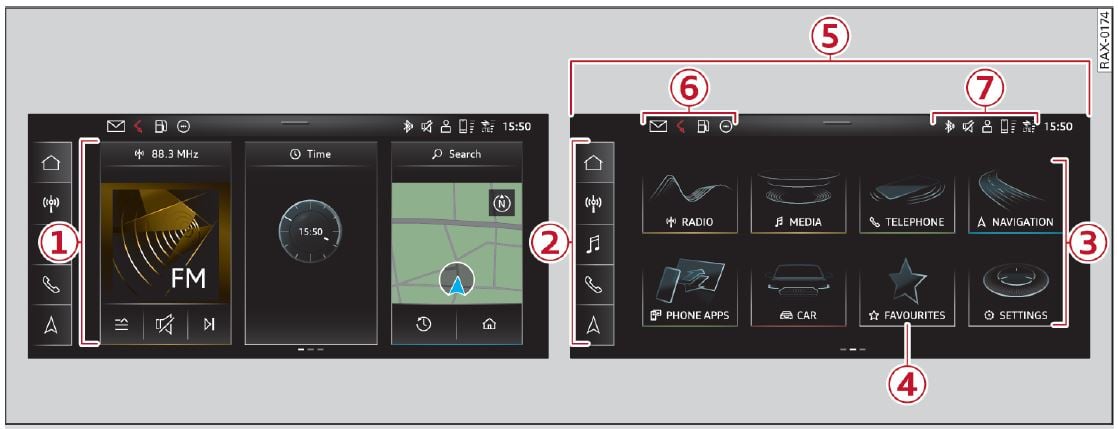
| Label , Description | ||
| 1 | Overview screen | Displays selected information tiles and provides quick access to certain functions c) |
| 2 | Quick access bar | Return to the home screen or the overview page, open menus quickly c) |
| 2 | Display area | Select a menu, apply settings, display content c) |
| 4 | Favorites | Use or manage favorites c) |
| 5 | Status bar | Operate functions and apply quick settings c) display of available notifications® c) |
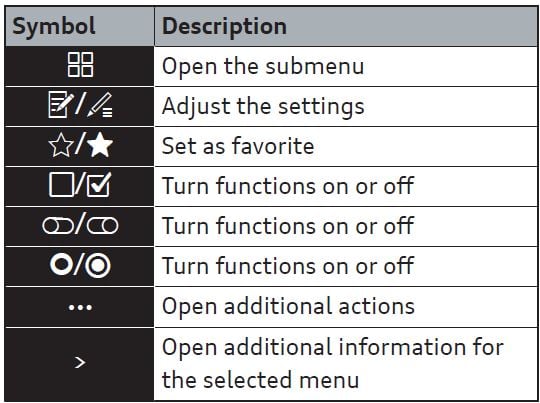
Description of common symbols
You can operate the default functions using the symbols that follow. The symbols may be found in any menu, depending on the context.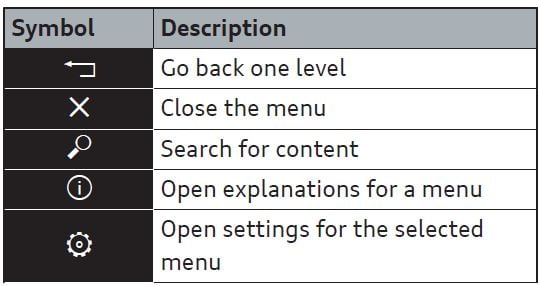
 Overview screen
The overview screen is the first menu page in the MMI. Information about certain vehicle functions such as media, time, and phone is displayed in tiles. The available information tiles can be rearranged on the overview screen or replaced with others. Depending on the system context, you may be able to operate certain functions directly, such as muting the sound.
Switching between the overview screen and the home screen
- Press repeatedly until the desired view appears.
Configuring the overview screen
- Press and hold an information tile on the overview screen.
- To change the position of an information tile, press and hold it and then slide it to the desired position.
- To replace an information tile, press and select the desired information tile.
- Press Done to complete the configuration.
Quick access
With quick access, you can return to the home screen and quickly switch between four menus that can be configured according to your preferences.
Returning to the home screen or opening a menu quickly
- Press or one of the four buttons.
Configuring quick access
- Press and hold a button on the home screen display area or in the quick access bar.
- To move a button to the quick access bar, pull it from the display area to the quick access bar.
- To adjust the placement of the buttons in the quick access bar, pull them to the desired position in the bar.
- Press Done to complete the configuration.
TIPS
The position of cannot be adjusted.
Display area
You can freely change the location of the buttons on the home screen display area.
Configuring the display area
- Press and hold a button on the home screen display area.
- To adjust the placement of the buttons, pull them to the desired locations.
- Press Done to complete the configuration.
Switching between menu pages
If a menu contains multiple menu pages, is displayed in the display area. The white bar shows the location of the current menu page.
- To switch between menu pages, swipe your finger to the right or left.
Favorites
By creating favorites, you can have quick access to various items, such as radio stations, frequently-used contacts, or vehicle settings. In the FAVORITES menu, the stored favorites are sorted by topic into information tiles.
Adding a favorite
A button indicates if you can add a favorite, such as a selected radio station. Depending on the context, you may also be able to add items without the* button to the favorites, such as entries in a list.
- Press or
- Press and hold an item in a list.
- Press Store as favorite. The selected item will be added as a favorite.
Using favorites
- Applies to: MMI: Select on the home screen: FAVORITES. The stored favorites will be displayed.
- To access a stored favorite, press that favorite.
Stored favorites can only be deleted or configured in the corresponding menu (such as RADIO).
Arranging information tiles
- Applies to: MMI: Select on the home screen: FAVORITES.
- Press and hold the desired information tile.
- Pull the information tile into the desired position.
- Press Done to confirm the configuration.
Status display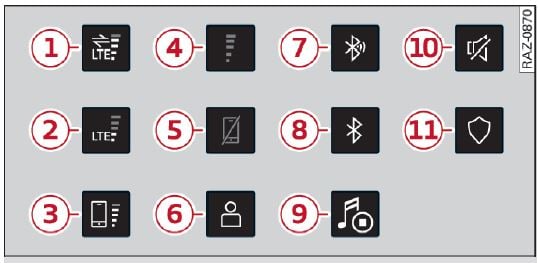
| Description | |
| 1 | There is a data connection. The bar indi- cates the signal strength of the data connection. Data is being transmitted now. |
| 2 | There is a data connection. The bar indi- cates the signal strength of the data connection. No data is being transmitted now. |
| 3 | A mobile device is connected. The bar indi- cates the signal strength of the cell phone connection. |
| There is no data connection. | |
| 4 | An error occurred with the mobile device connection to the MMI. |
| 5 | A user is selected. If a question mark appears in the symbol R,, the guest user is active. |
| 6 | A Bluetooth device is connected. |
| 7 | Bluetooth is switched on, but no Bluetooth device is connected. |
| 8 | Audio playback was interrupted. |
| 9 | The audio source is muted. |
| 10 | Privacy settings are enabled. The additional symbol indicates which privacy settings are |
| currently activated | |
| 11 | The Integrated Toll Module is switched on. The numbers 1 – 3+ indicate how many pas- sengers are selected in the MMI. |
Notification center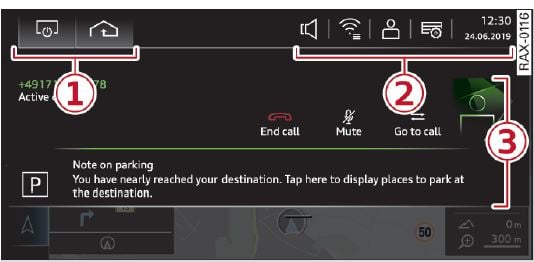 Notifications can be displayed in the center display. After a specified time, they will be hidden and a corresponding symbol will appear in the status bar. In the notification center, you can view these notifications, apply quick settings@, and operate functions.
Using the notification center
- To open the notification center, pull the status bar downward,
- Press the’ button on the status bar.
- To turn quick settings on or off, press the respective symbol(D.
- To apply quick settings, press the respective symbol.
- To obtain additional information about a notification, press it.
- To delete a notification, pull it toward the right edge of the screen.
- If there are more than four notifications in the notification center, the older notifications will be hidden. To display the older notifications, drag your finger upward on the screen.
Setting which content is displayed
You can set whether some notifications should be displayed.
- To set the displayed content, press.
- Applies to MMI: Select on the home screen: SETTINGS> Notifications.
- Select and confirm which notifications should be displayed.
Operating functions
Depending on the vehicle equipment, the following functions can be operated in area.
| Description |
| Press: switches the center display on or off (this can also be done us ing the button in the center con sole) |
| Press and hold: switches the screen clearing mode on or off (can also be done using the but ton in the center console) |
| Opens the garage dooropener function |
Applying quick settings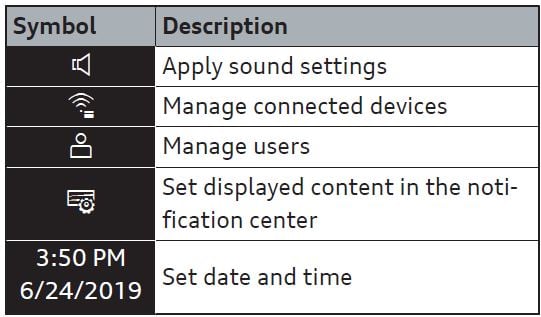 Depending on vehicle equipment, the following quick settings may be available in area
Text Entry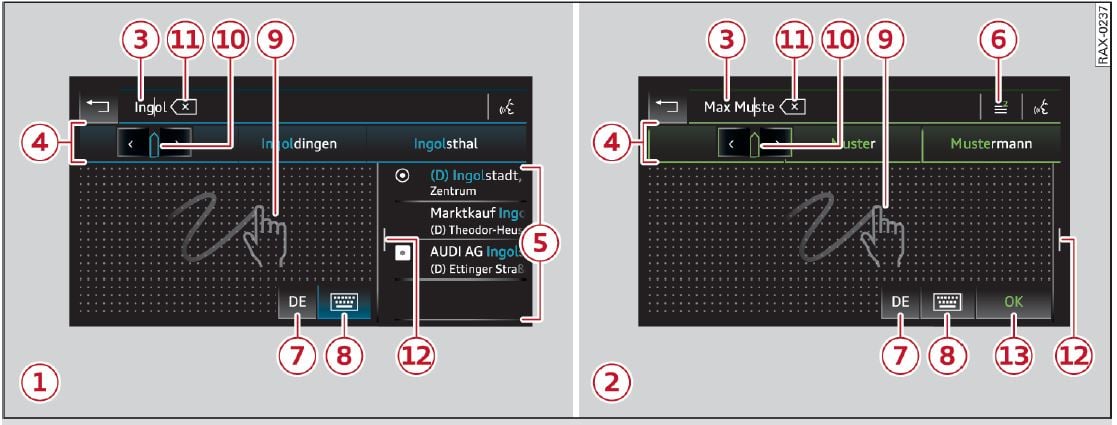
Overview
In the input fields of various menus, you can enter letters, numbers and characters, for example to find an address in navigation. The text that is currently entered is displayed in the center display G). Depending on the context, word suggestions may be given based on the characters that have been entered and results may be shown.
Opening text input
- Tap inside the input field G).
Switching input languages
Requirement: multiple input languages must be defined in the MMI.
- To switch between the defined input languages, press the button.
Switching the input methods
- To switch between handwriting input or the onscreen keyboard, press the button.
Entering text
- Applies to: the on-screen keyboard: To enter text, press the buttons on the keyboard. Depending on the usage context, you may also be able to swipe over the letters 1l.
- Applies to: handwriting input: To enter text, simply write in the input area using one finger · You can write the separate characters next to each other or one on top of the other without having to move your finger over after writing a character. When you end the entry, the writing is interpreted by the system.
- Applies to: the on-screen keyboard with an input language that uses accented characters: To enter accented characters (such as a), press and hold a character that has accented versions available and select the desired accented character.
- Applies to: handwriting input: To enter a space, drag a line from left to right in the input section.
- To select a location in the text input, press on the desired location in the input field. You can control the location more accurately using the slider on the screen
- To delete individual characters, press.
- Applies to: handwriting input: Drag a Line from right to left in the input section.
- To delete multiple characters, press and hold.
- To delete all characters at a specific location, press and hold and drag up to the desired location. When released, the highlighted characters are deleted.
Accepting suggested words or selecting entries from the results list
- To accept a suggested word or select an entry from the results list@, press on it.
- To display more content in the results list, drag your finger upward or downward on the screen.
- To enlarge the results list. press the@ button or pull it inward.
Setting the input language or keyboard layout
- Select on the home screen: SETTINGS > Language & keyboard > Keyboard.
- To define additional input languages, press the button.
- To change the keyboard layout for an input language, press>. For example, you can select between QWERTZ and QWERTY.
Useful Links:
2024 Audi Q3 Specs, Price, Features, Mileage
2026 Audi Q3 Alarm System / Security User Guide
2026 Audi Q3 Warning Lights and Indicator User Guide