
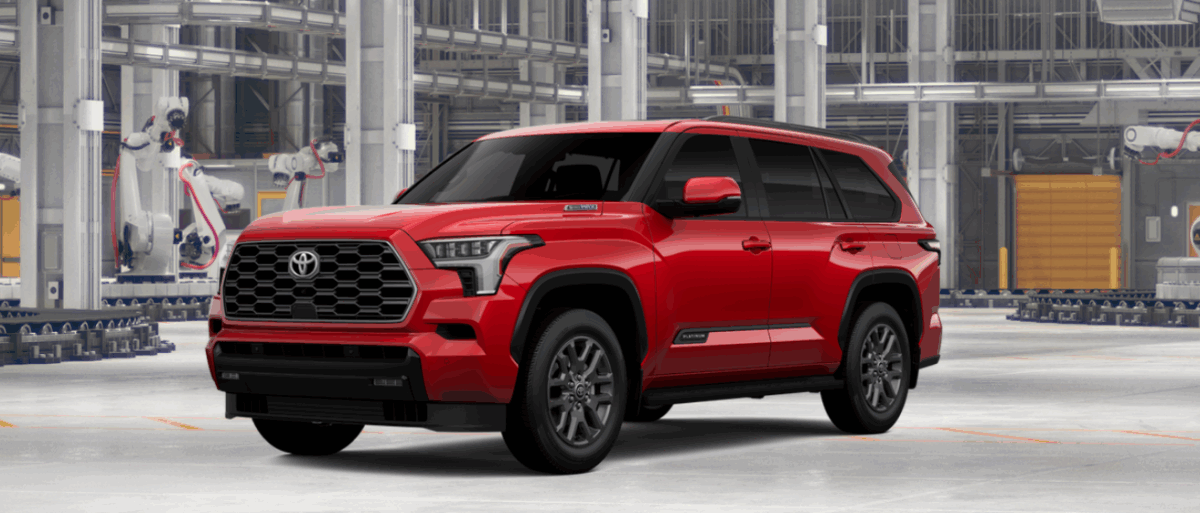

2026 Toyota Sequoia LCD Display User Guide
This guide examines the 2026 Toyota Sequoia LCD Display, emphasising innovative design, clarity, and fluid control functions. Understand how modern technology improves the driving experience with customised settings and real-time information.
Video: 2026 Toyota Sequoia Dashboard Warning Indicators
Multi-information display
The multi-information display is used to display fuel efficiency relat-ed information and various types of driving-related information. The multi-information display can also be used to change the display settings and other settings.
Display and menu icons
- Display

- Content display area
By selecting menu icons on the multi-information display, a variety of driving-related information can be displayed. The multi-information display can also be used to change display settings and other vehicle settings.
Warning or advice pop-up displays are also displayed in certain situations. - Driving support system status dis-play area
- LTA (Lane Tracing Assist)
- Dynamic radar cruise control with full-speed range
- RSA (Road Sign Assist)
Menu icons
The menu icons will be displayed by pressing the [ ] or [ ] meter control switch.
 INFORMATION
Liquid crystal display
Small spots or light spots may appear on the display. This phenomenon is characteristic of liquid crystal displays, and there is no problem continuing to use the display.
Changing the display
The multi-information display is operated using the meter control switches.
- Scroll the screen*1/switch the dis-play*1/move the cursor
- Press : Enter/Set
Press and hold : Reset/Display cus-tomizable items - Return to the previous screen
- Call sending/receiving and history display
Linked with the hands-free system, sending or receiving call is dis-played. For details regarding the hands-free system, refer to the “MULTIMEDIA OWNER’S MANUAL”.
WARNING
Caution for use while driving
For safety, avoid operating the meter control switch while driving as much as possible, and do not look continuously at the multi-information display while driving. Stop the vehicle and operate the meter control switch. Fail-
- On screens where the screen can be scrolled and the display can be switched, a scroll bar or a round icon that shows the number of registered screens is displayed.
WARNING
ure to do so may cause a steering wheel operation error, resulting in an unexpected accident.
Content of driving information
Select to display fuel consumption data in various forms.
Fuel economy
Use the displayed values as a reference only.
- Distance to empty
Displays the driving range with remain-ing fuel. - Current fuel consumption
Displays instantaneous current fuel con-sumption. - Average fuel economy (after reset)
To reset the average fuel economy dis-play, press and hold the [ control switch.
The average fuel economy display can be changed in [ ].
- Average fuel economy (after start)
Displays the average fuel consumption since hybrid system start. - Average fuel economy (after refuel)
Displays the average fuel consumption since the vehicle was refueled.
Hybrid System Indicator/Distance to empty
- Hybrid System Indicator

- Hybrid Eco area
Shows that gasoline engine power is not being used very often.
The gasoline engine will automatically stop and restart under various condi-tions. - Eco area
Shows that the vehicle is being driven in an Eco-friendly manner. By keeping the indicator needle within the Eco area, more Eco-friendly driving can be achieved. - Power area
Shows that an Eco-friendly driving range is being exceeded (during full power driving etc.)
Distance to empty
Displays the driving range with remaining fuel.
Distance to empty
- This distance is computed based on your average fuel consumption. As a result, the actual distance that can be driven may differ from that displayed.
- When only a small amount of fuel is added to the tank, the display may not be updated. When refueling, turn the power switch to OFF. If the vehicle is refueled without turning the power switch to OFF, the display may not be updated.
- When “Refuel” is displayed, the remaining fuel amount is low and the distance that can be driven with the remaining fuel cannot be calculat-ed. Refuel immediately.
Hybrid System Indicator
The Hybrid System Indicator will not operate in the following situations:
- The [READY] indicator is not illuminated.
- The shift lever is in a range other than D or S.
Navigation system-linked display
Select to display the following navigation system-linked information:
- Route guidance to destination
- Compass display (heading-up display)
Audio system-linked display
The operating conditions of the audio system can be displayed on the multi-information display.
Vehicle information display
Trailer brake
Displays trailer brake control status and trailer type*1.
Trailer Mode BSM
Displays trailer length*1 and trailer blind spot status
Drive information
2 items that are selected using the [Drive Info Items] setting (aver-age speed, distance and total time) can be displayed vertically.
The displayed information changes according to the [Drive Info Type] setting (since the system was started or between resets)
Use the displayed information as a reference only.
Following items will be displayed.
- [Trip]
- [Average Speed] : Displays the average vehicle speed since hybrid system start*2
- [Distance] : Displays the distance driven since hybrid system start*2
- [Total Time] : Displays the elapsed time since hybrid system start*2
- [Total]
- [Average Speed] : Displays the average vehicle speed since the display was reset*3
- [Distance] : Displays the distance driven since the display was reset*3
- [Total Time] : Displays the elapsed time since the display was reset*3
Tire inflation pressure
Displays inflation pressure of each tire.
- To select the trailer, press and hold the
- These items are reset each time the hybrid system stops.
- To reset, display the desired item and press and hold the [ control switch.
Settings display
Meter display settings that can be changed
- Language
Select to change the language displayed. - Units
Select to change the units of measure displayed. - Meter Type
Select to change the main dial type to speedometer or tachometer.  (Driving information display settings)
- Fuel economy display Select to change the average fuel consumption display between after start/after reset/after refuel.
 (Audio settings)
Select to display/not display the audio system linked display. (Vehicle information display settings)
Select to change the displayed content of the following:- Drive information type
Select to change the drive information type display between after start/after reset. - Drive information items
Select to set the first and second items of the drive information display to any of the following : average vehicle speed/distance/elapsed time.
- Drive information type
- Pop-up display
Select to enable/disable pop-up displays for each relevant system. - Multi-information display off
Select to turn the multi-information display off.
To turn the multi-information display on again, press any of the meter control switches. - Default setting
Select to reset the meter display settings to the default setting.
Changing settings of the trailer type
- Trailer settings screen

- Displays the name of the currently selected trailer or [No Trailer Se-lected] if a trailer has not yet been selected
- Add a new trailer or select an exist-ing saved trailer
- Maximum of 10 trailers can be saved.
- Select the trailer name, length, brake type and number of axles.
- The parameters which can be set de-pend on which of the trailer systems are installed on the vehicle. (Trail-er Brake Controller, Trailer Backup Guide and Trailer Mode BSM)
- Deselect the currently selected trail-er
- Used when a 4-pin trailer connector has been disconnected. (4-pin trail-er connector disconnection cannot be automatically detected by Trailer Brake Controller)
- Edit the parameters of a saved trail-er (name, length, brake type and number of axles)
- The parameters which can be edit-ed depend on which of the trailer systems are installed on the vehicle (Trailer Brake Controller, Trailer Back-up Guide and Trailer Mode BSM)
- Delete a saved trailer
- Displays the name of the current trailer which is being added or edit-ed.
- Change the name of the trailer.
- Change the length of the trailer. If the exact length is not listed, round up the actual length of the trailer to the closest available value. [Auto] length detection can also be se-lected.
- Change the number of axles.
- Change the brake type (electric or electric over hydraulic) and weight of the trailer, or turn trailer brakes off for that trailer.
- Save the trailer information
If there are any errors with the trailer values, re-select the value or delete and re-save the trailer. If the error continues, contact your Toyota dealer. - Trailer detail screen

Vehicle functions and settings that can be changed
Suspension of the settings display
- Some settings cannot be changed while driving. When changing set-tings, park the vehicle in a safe place.
- If a warning message is displayed, operation of the settings display will be suspended.
WARNING
Cautions during setting up the display
If the hybrid system is operating when changing the display settings, ensure that the vehicle is parked in a place with adequate ventilation. In a closed area such as a garage, exhaust gases including harmful carbon monoxide (CO) may collect and enter the vehicle. This may lead to death or a serious health hazard.
NOTICE
During setting up the display
To prevent 12-volt battery discharge, ensure that the hybrid system is operating while setting up the display features.
Warning message display
Select to display warning messages and measures to be taken if a malfunction is detected.
Head-up display
The head-up display projects a variety of driving-related information and the operating state of the driving support systems on the wind-shield.
System components
Illustrations used in this text are intended as examples, and may differ from the image that is actually displayed by the head-up display.
- Driving support system status/navigation system-linked display area
- Shift position display/RSA (Road Sign Assist)* display area
- Vehicle speed display
- Hybrid System Indicator/Outside temperature display area
Head-up display will operate when
The power switch is in ON.
When using the head-up display
The head-up display may seem dark or hard to see when viewed through sunglasses, especially polarized sunglasses. Adjust the brightness of the head-up display or remove your sunglasses.
Street name display
Only street names which are included in the map data will be displayed.
WARNING
When using the head-up display
- Check that the position and brightness of the head-up display image does not interfere with safe driving. Incorrect adjustment of the image’s position or brightness may obstruct the driver’s view and lead to an accident, resulting in death or serious injury.
- Do not continuously look at the head-up display while driving as you may fail to see pedestrians, objects on the road, etc., ahead of the vehicle.
NOTICE
Head-up display projector
- Do not place any drinks near the head-up display projector. If the projector gets wet, electrical malfunctions may result.

- Do not place anything on or put stickers onto the head-up display projector.
Doing so could interrupt head-up display indications. - Do not touch the inside of the head-up display projector or thrust sharp edges or the like into the projector.
Doing so could cause mechanical malfunctions.
Using the head-up display
Select [ ] on the multi-information display and then [HUD Main].
Changing the head-up display settings
- Brightness and vertical position of the head-up display
Select to adjust the brightness or vertical position of the head-up display. - Display content
Select to change the display between the following:- No content
- Hybrid System Indicator
- Select to enable/disable the following items:
- Route guidance to destination
- Driving support system display
- Compass (heading-up display)
- Audio system operation status
- Display angle
Select to adjust the angle of the head-up display.
Enabling/disabling of the head-up display
If the head-up display is disabled, it will remain disabled when the power switch is turned off then back to ON.
Display brightness
The brightness of the head-up display can be adjusted on [ ] of the multi-information display. Also, it is automatically adjusted according to the ambient brightness.
WARNING
Caution for changing settings of the head-up display
If the hybrid system is operating when changing the display settings, ensure that the vehicle is parked in a place with adequate ventilation. In a closed area such as a garage, exhaust gases including harmful carbon monoxide (CO) may collect and enter the vehicle. This may lead to death or a serious health hazard.
NOTICE
When changing the settings of the head-up display
To prevent 12-volt battery discharge, ensure that the hybrid system is operating while changing the settings of the head-up display.
Driving support system status/ navigation system-linked display area
Driving support system status display
Displays the operational status of the following systems:
- LTA (Lane Tracing Assist)
- Dynamic radar cruise control with full-speed range
Details of content displayed on the head-up display may differ from that dis-played on the multi-information display. For details, refer to the explanation of each system.
Navigation system-linked display area
Displays the following items which are linked to the navigation sys-tem:
- Street name
- Route guidance to destination
- Compass (heading-up display)
Pop-up display
Pop-up displays for the following systems will be displayed when necessary:
Driving support systems
Displays a warning/suggestion/advice message or the operating state of a relevant system.
- PCS (Pre-Collision System)
- LTA (Lane Tracing Assist)
- PKSB (Parking Support Brake)
- Brake Override System
- Drive-Start Control
* : If equipped
Details of content displayed on the head-up display may differ from that dis-played on the multi-information display. For details, refer to the explanation of each system.
icons
These icons are linked to the multi-information display
Hybrid System Indicator/Outside temperature display
Hybrid System Indicator
- Hybrid Eco area
- Eco area
- Power area
Displayed content is the same as that displayed on the multi-information display (Hybrid System Indicator). For details
Outside temperature display
Displayed when the power switch is turned to ON or when the low outside temperature indicator is flashing.
Outside temperature display
- When the ambient temperature is approximately 37°F (3°C) or lower, the low outside temperature indicator will flash for approximately 10 seconds and the outside temperature display will turn off. In this case, the display will be displayed again when the outside temperature be-comes approximately 41°F (5°C) or higher.
- In the following situations, the correct outside temperature may not be displayed, or the display may take longer than normal to change:
- When stopped, or driving at low speeds (less than 16 mph [25 km/h])
- When the outside temperature has changed suddenly (at the en-trance/exit of a garage, tunnel, etc.)
- When “–” is displayed, the system may be malfunctioning. Take your vehicle to your Toyota dealer.
Useful Links:
2024 Toyota Sequoia Specs, Price, Features, Mileage and Review
2026 Toyota Sequoia Instrument Cluster User Guide