
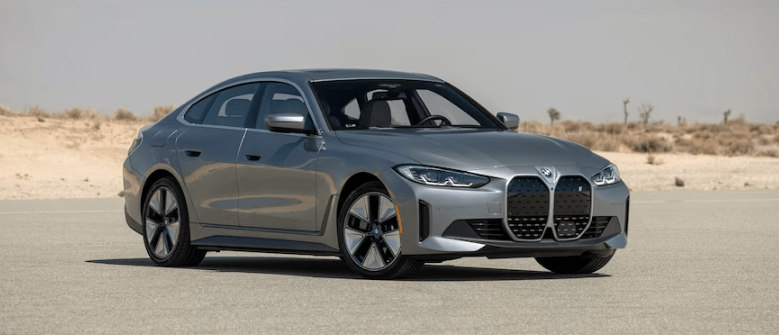
2024 BMW i4 Instrument Cluster User Guide
An advanced digital display displays real-time car data, navigation, and driver assistance capabilities in the 2024 BMW i4 Instrument Cluster. Cutting-edge technologies and user-friendly controls improve driving precision and convenience for clarity and personalization.
2024 BMW i4 Specs, Price, Features, Mileage and Review
Video: 2024 BMW i4 Dashboard Warning Indicators
Instrument cluster
Principle The instrument cluster comprises various digital displays, e.g., a speedometer, displays for time, range, temperature, or indicator/warning lights. General
- The layout of the instrument cluster adapts to the respective drive mode. The positions of some displays may vary, e.g. the selector lever indication.
- The displays in the instrument cluster can sometimes differ from the illustrations in the Owner’s Handbook.
Safety information
WARNING If the displays in the instrument cluster fail, the vehicle must not be used. There is a risk of accident or material damage. Immediately park the vehicle safely. By switching the drive-ready state off and on again, it may be possible to rectify the malfunction and continue driving. If the malfunction cannot be rectified, have the system checked by an authorised Service Partner or another qualified Service Partner or a specialist workshop.
Overview
 Instrument cluster
Indication ranges in the instrument cluster

- Speedometer
- Driver assistance systems
- Driver Attention Camera
- Check Control Selector lever indication Selection lists Using eDRIVE efficiently
- Power display
- Range
- Selector lever position Outside temperature
- Charging display Central display area
- Drive mode
- Speed Limit Info Speed Limit Assist
- Time
- Charging status display of the high-voltage battery
For further information: Indicator and warning lights
Operating elements on the steering wheel
Operating element Function
 Display the menu bar in the instrument cluster.
 Press the corresponding arrow button to move the selection.
 Turn the knurled wheel: scroll the selection up or down. Press the knurled wheel: confirm the selection.
Configuring the layout In COMFORT drive mode, the layout can be individually configured and displayed in the instrument cluster.
- Press the button on the steering wheel. A menu bar is displayed in the instrument cluster.
- “LAYOUT” Select the menu using the arrow buttons on the steering wheel as necessary.
- Select the required setting using the knurled wheel on the steering wheel.
Settings Individual displays can be set individually, e.g. a second actual speed.
 Apps menu
- “Vehicle”
- “Displays”
- “Instrument cluster”
- Select the desired setting.
Live Vehicle Principle Live Vehicle is a virtual representation of your own vehicle with different information, e.g. vehicle status or energy flow indicators. General Depending on the driving situation, suitable information is shown on the control display. Fault statuses are not taken into account. Adaptive content The following is displayed in alternating order and, if applicable, depending on the selected drive mode:
- Vehicle status
- Current driving condition
- Sport displays
- Driving style analysis
- Trip data
Static content The following content can be displayed continuously on the control display regardless of the driving situation and set drive mode.
- Vehicle status.
- Trip data.
Configuring the display In the Live Vehicle menu, it is possible to choose between an adaptive display and static content.
- Apps menu
- “Vehicle”
- “Live Vehicle”
- “Content”
- Select the desired setting.
Useful Links
View Full PDF: 2024 BMW I4 User Manual | Auto User Guide
2024 BMW I4 Specs, Price, Features, Mileage And Review
2024 BMW i4 Warning and Indicator Lights User Guide